Ptolemy Open On Demand Documentation
Open OnDemand
In order to log in, users must use their HPC2 issued login credentials (NetID, password, Duo 2-factor).
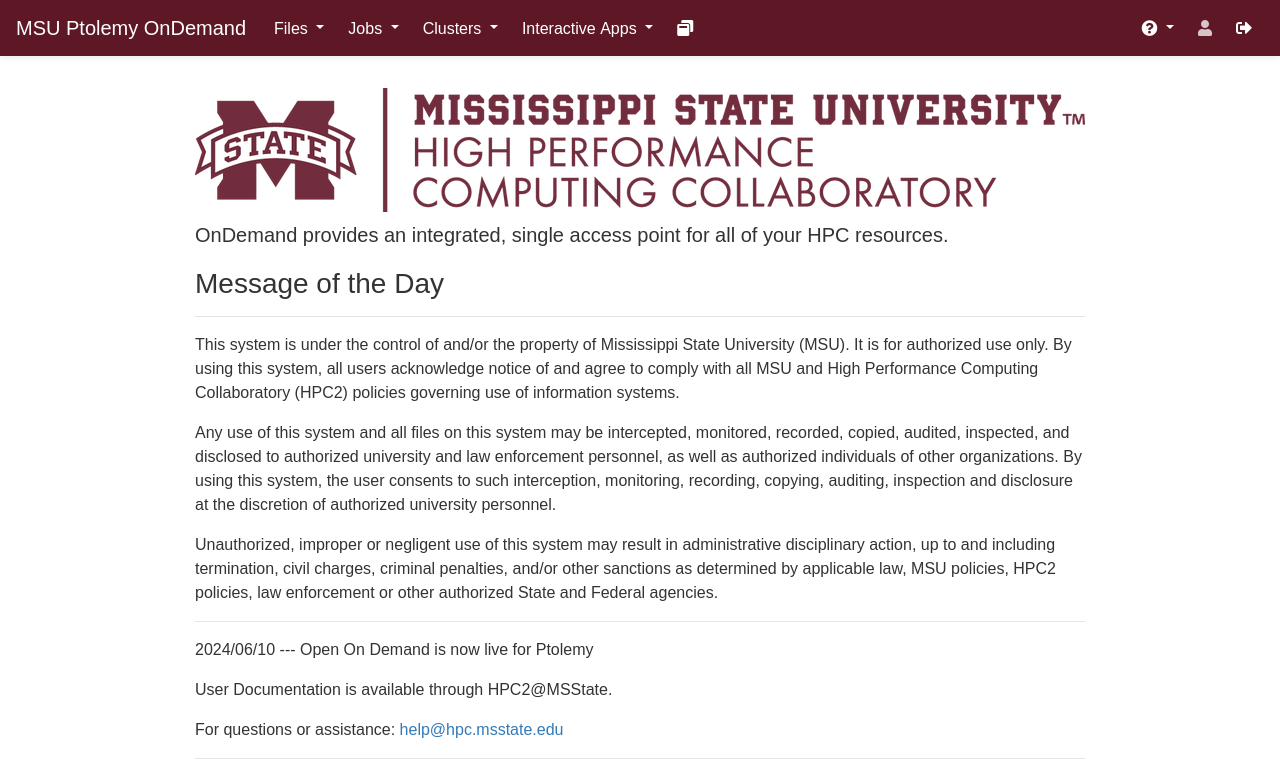
After logging in, the user will be greeted with the dashboard page. This gives links to all other OnDemand utilities at the top of the page, as well as displaying our Terms of Service and any announcements related to the OnDemand Server:
Virtual Desktops
 On the Desktop parameters page, you need to specify what Slurm Account,
Partition, and QOS to run the desktop under, as this will run as a job through
the resource manager and scheduler. There will also be fields for users to
select how long they need the desktop, as well as how many nodes and processors
should be allocated for the session. Finally, an "Additional Slurm Parameters"
field allows users to specify any additional parameters that may be needed and
are not part of the provided fields:
On the Desktop parameters page, you need to specify what Slurm Account,
Partition, and QOS to run the desktop under, as this will run as a job through
the resource manager and scheduler. There will also be fields for users to
select how long they need the desktop, as well as how many nodes and processors
should be allocated for the session. Finally, an "Additional Slurm Parameters"
field allows users to specify any additional parameters that may be needed and
are not part of the provided fields: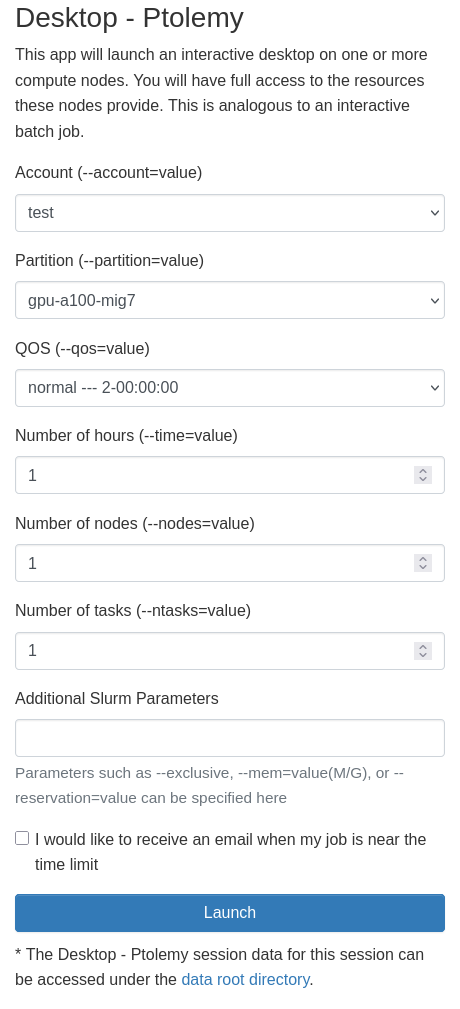 After entering in the necessary parameters for the batch job, click "Launch" to
put the session into the scheduling queue. You will be taken to the
"Interactive Sessions" page, which contains a list of all queued and running
sessions that the user has. The virtual desktop that was just launched will
have an entry in the queued state until a spot is freed and the scheduler is
able to start the job:
After entering in the necessary parameters for the batch job, click "Launch" to
put the session into the scheduling queue. You will be taken to the
"Interactive Sessions" page, which contains a list of all queued and running
sessions that the user has. The virtual desktop that was just launched will
have an entry in the queued state until a spot is freed and the scheduler is
able to start the job: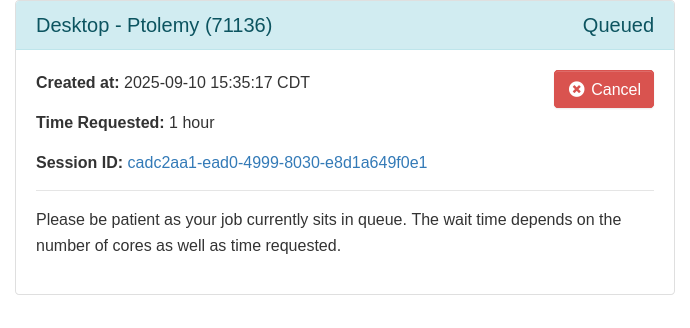 Once the job has been given an allocation and launched on the compute nodes,
you will be able to connect to the virtual desktop session via VNC in the web
browser by clicking the "Launch Desktop - Ptolemy" button on the Interactive
App entry. There are also sliders to adjust the remote session's image quality
and graphics prior to launching the desktop:
Once the job has been given an allocation and launched on the compute nodes,
you will be able to connect to the virtual desktop session via VNC in the web
browser by clicking the "Launch Desktop - Ptolemy" button on the Interactive
App entry. There are also sliders to adjust the remote session's image quality
and graphics prior to launching the desktop: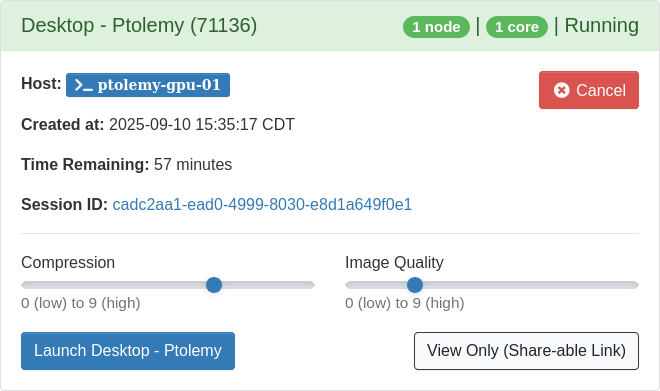
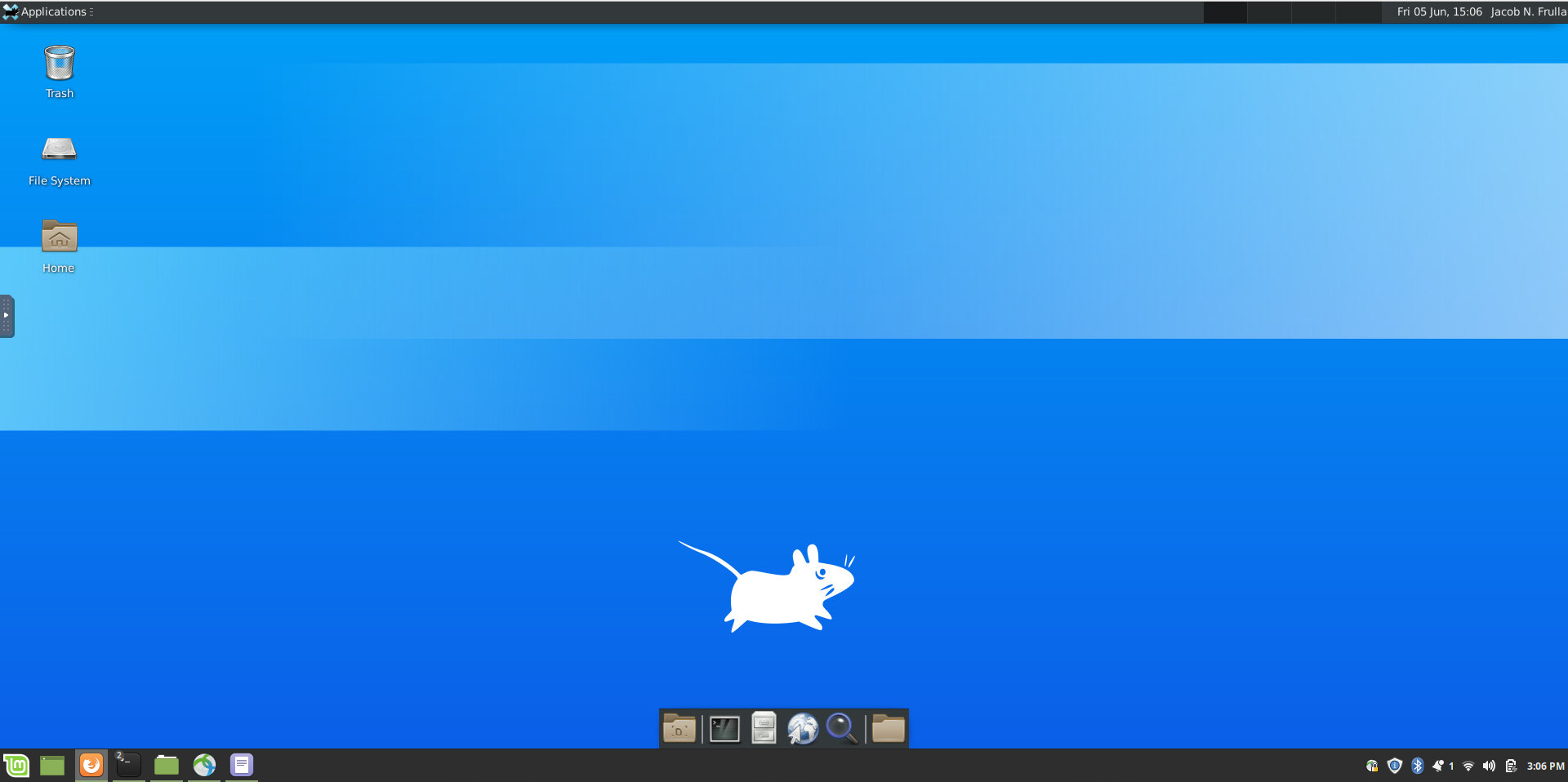 If the browser window is closed out without cancelling the job, the job will
continue to run on the cluster until its alloted time has expired.
If the browser window is closed out without cancelling the job, the job will
continue to run on the cluster until its alloted time has expired.If you are done with your interactive session, it is strongly recommended that you cancel the job before closing out the window. This will free up those resources for other users.
If, on the other hand, you intend to return to the session before it times out, then you can reconnect to the running job by logging back into the open-on-demand site and clicking on the tab icon next to the "Interactive Apps" drop-down menu. This will take you back to the page showing the status of your interactive jobs. Clicking on the "Launch" button should restore the session.
 Users can access their Virtual Desktop, or any other active session, by
navigating to the "My Interactive Sessions" page. Users can get to this page by
clicking on the Sessions icon on the navigational bar at the top of their
dashboard. Once on this page, users will be able to re-launch their interactive
session. If you want to adjust the Compression or Image Quality of your
session, you need only close out the tab that the session is in and then
relaunch the desktop. It is not necessary to create a new desktop session.
Users can access their Virtual Desktop, or any other active session, by
navigating to the "My Interactive Sessions" page. Users can get to this page by
clicking on the Sessions icon on the navigational bar at the top of their
dashboard. Once on this page, users will be able to re-launch their interactive
session. If you want to adjust the Compression or Image Quality of your
session, you need only close out the tab that the session is in and then
relaunch the desktop. It is not necessary to create a new desktop session.
ANSYS Workbench and Jupyter Notebooks
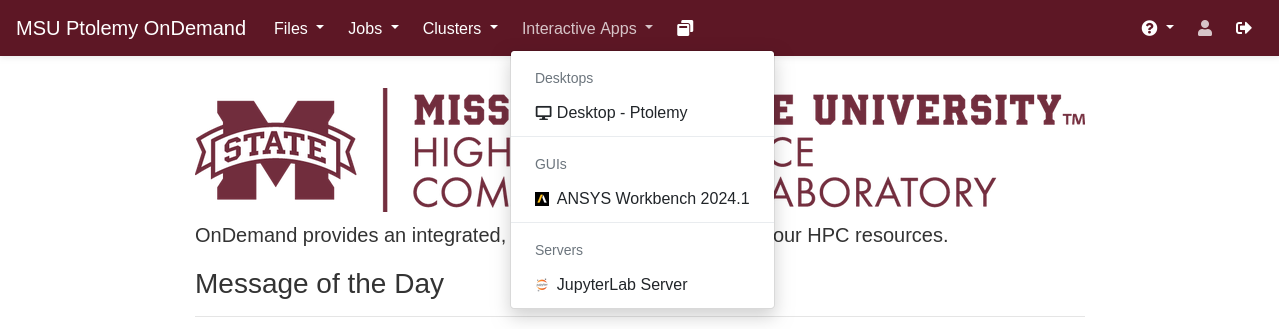
The advantage of running these applications separate from the virtual desktop is they run on top of a more lightweight windows manager that does not have the overhead of a full desktop environment. They also have startup scripts that are application specific and often optimized for the way that they are launched on OnDemand. Otherwise, these applications are launched exactly the same way that the virtual desktops are launched:
For example, when launching the ANSYS Workbench through OOD Interactive Sessions, you will be prompted with the following screen where you can enter the SLURM options for your job. These parameters will be used to launch an interactive session on one of the compute nodes.
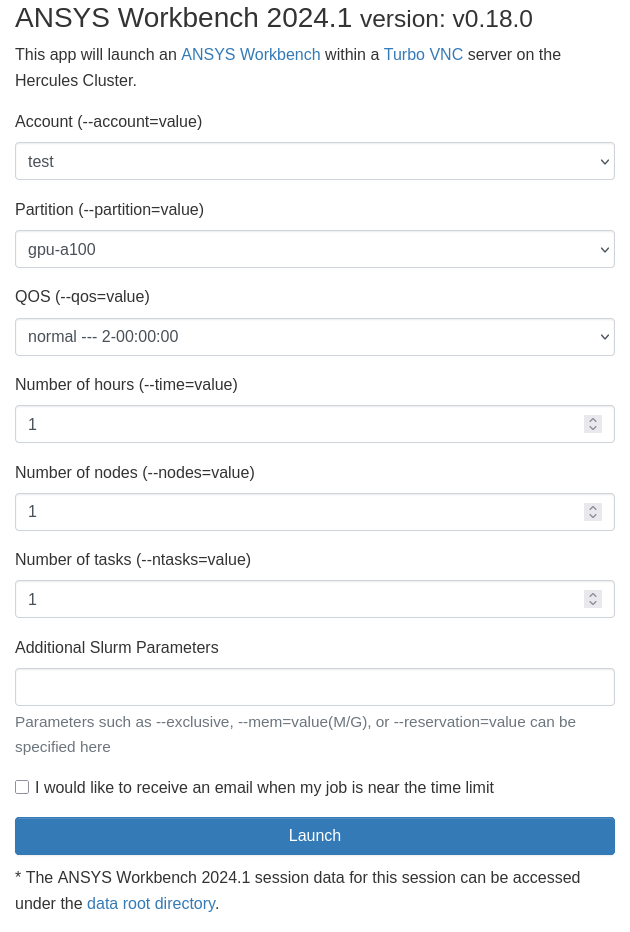 The next screen will show box with the status of the job launch on the cluster.
When the job has been successfully allocated, you should see a screen similar
to this:
The next screen will show box with the status of the job launch on the cluster.
When the job has been successfully allocated, you should see a screen similar
to this: 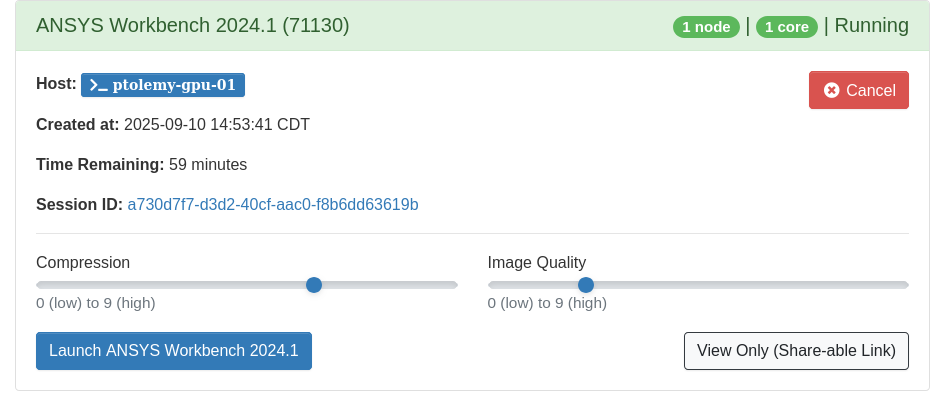 Clicking on the "Launch" button will drop you into an interactive session with
the ANSYS Workbench software.
Clicking on the "Launch" button will drop you into an interactive session with
the ANSYS Workbench software.